


User Manual
BPM Editor
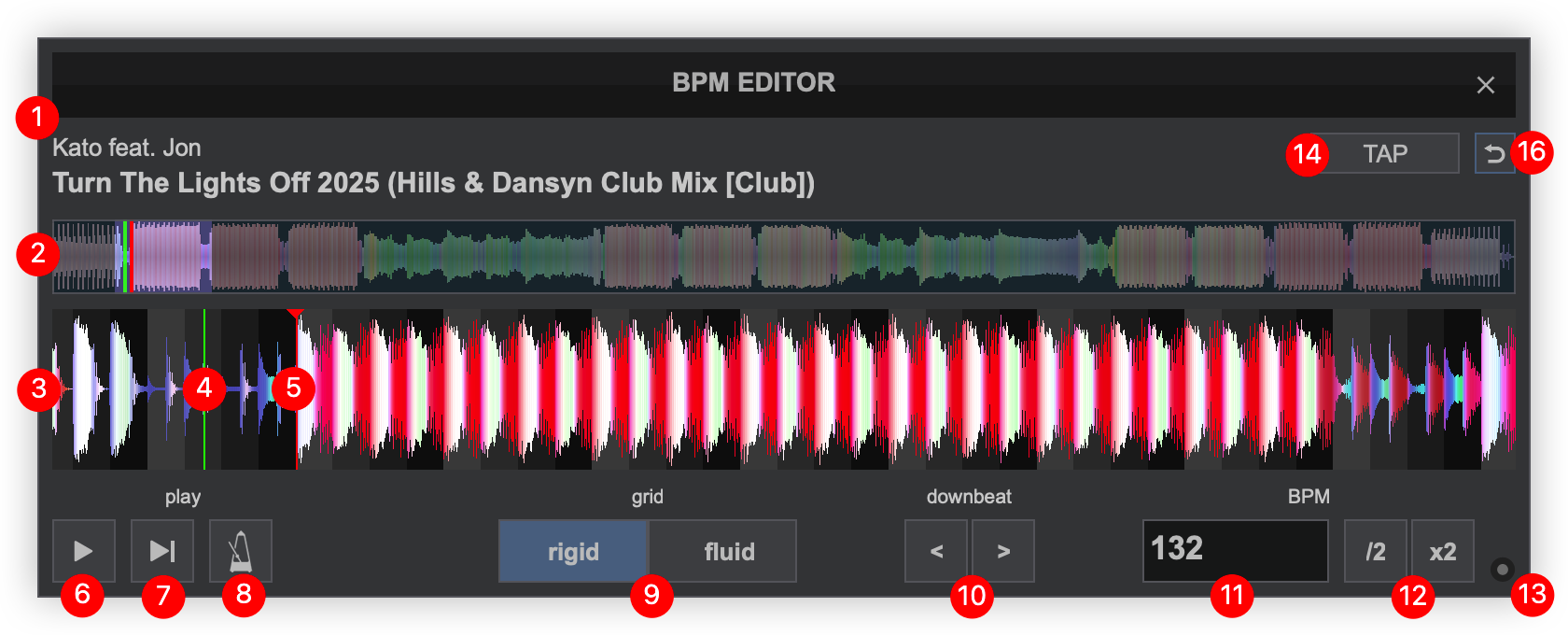
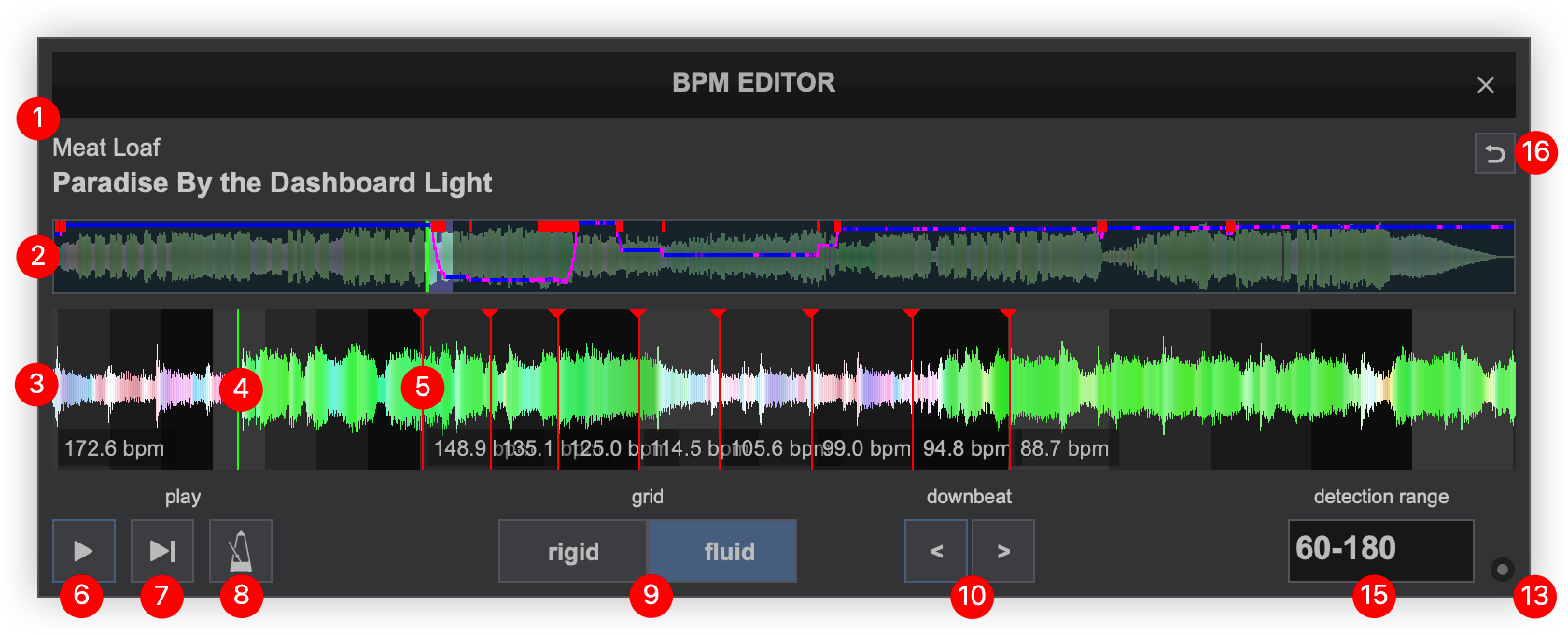
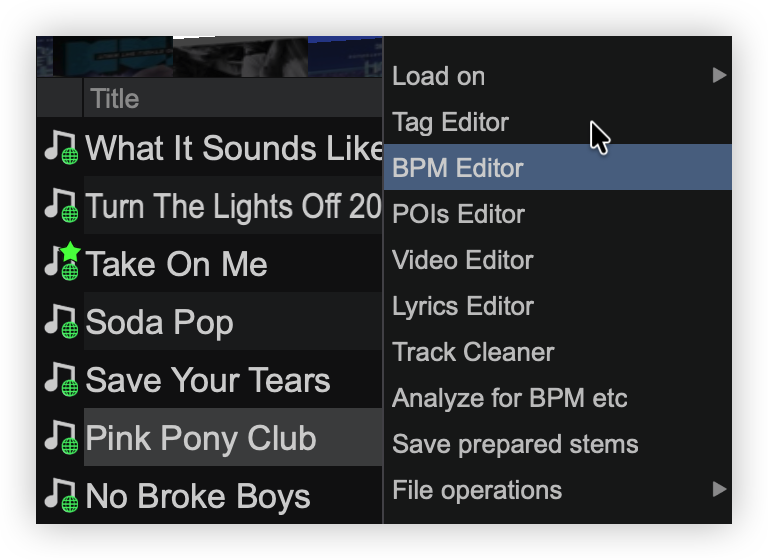
VirtualDJ has an advanced Sound Engine that will calculate the tempo (BPM value) and the Beat Grid (CBG) of your tracks with accuracy in almost all cases. In the rare case that either the BPM value or the Beat Grid of your track are not correct, the BPM Editor will provide all the tools to easily and accurately calculate and manually adjust them. To open the BPM Editor, right-click on any of your tracks or click on BPM on the decks of the Interface.
The track will only be audible through the PFL if a headphone channel has been created in the Audio Setup (if no headphone channel is available a pop up window will display asking if the feature can be used through the master output).
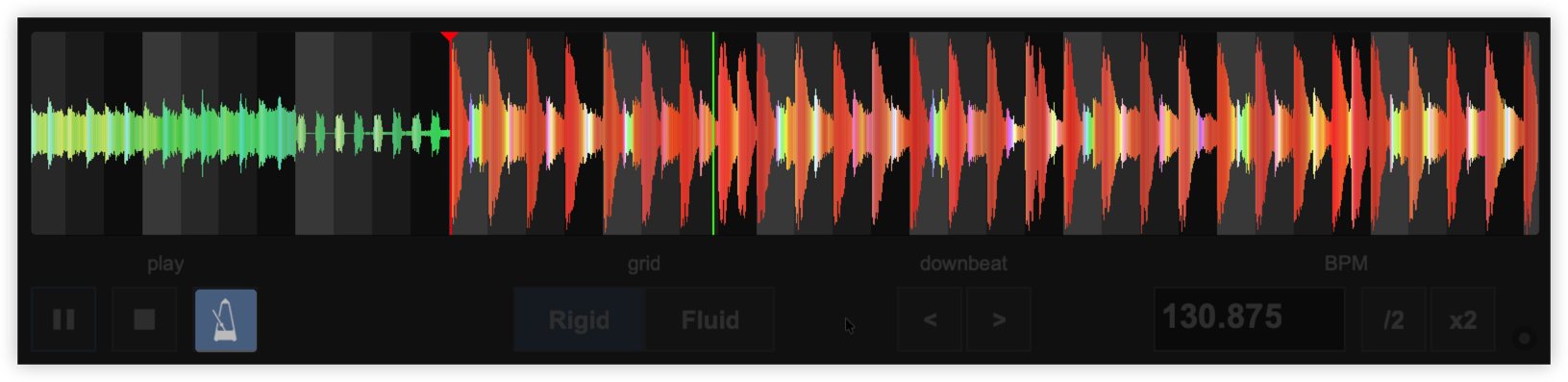
- FILE INFO. This area shows the Artist, Title and Remix (if entered) of the file being edited.
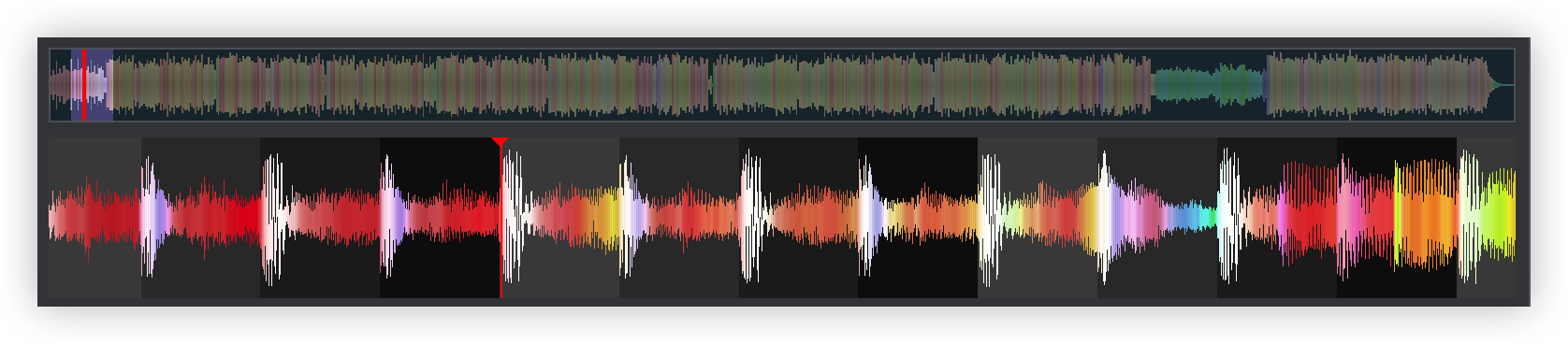
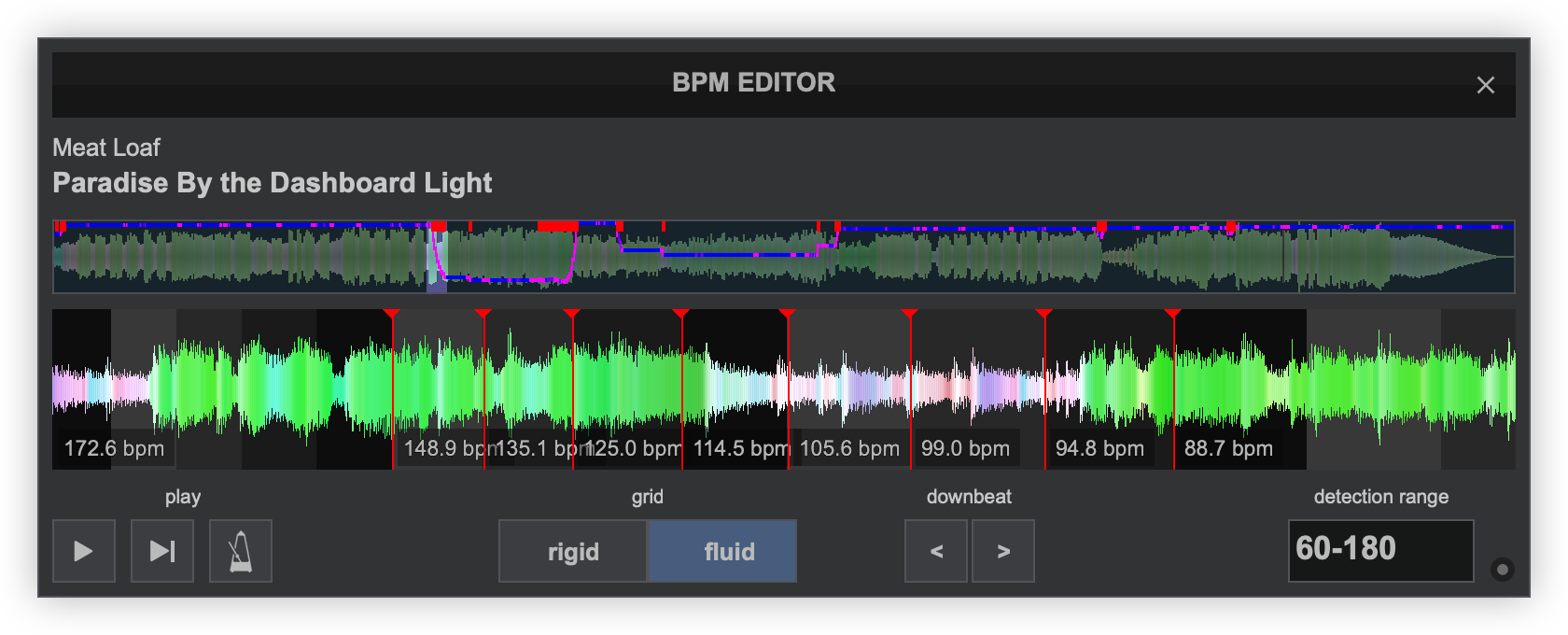
- SCROLL BAR. Displays the zoom level of the waveform (highlighted in blue) and can be dragged to any part of the file to perform precise adjustments. If Variable BPM is selected it will display a blue graph line with a heat map (indicated in pink) to show where the BPM ramps up or down. The pink areas of the line show major fluctuations to the BPM and should be used as a warning to not mix in those sections of the track.
- WAVEFORM. Provides a visual display of the audio information. It displays the beatgrid using the grayscaled background and can be zoomed in to make precise BPM adjustments with a wheel mouse.
- PLAYHEAD. Shows the current position of the track. All new adjustments and play functions use the playhead to determine the start position. It can be clicked and dragged to any part of the track with a mouse.
- BEATGRID ANCHOR(S).
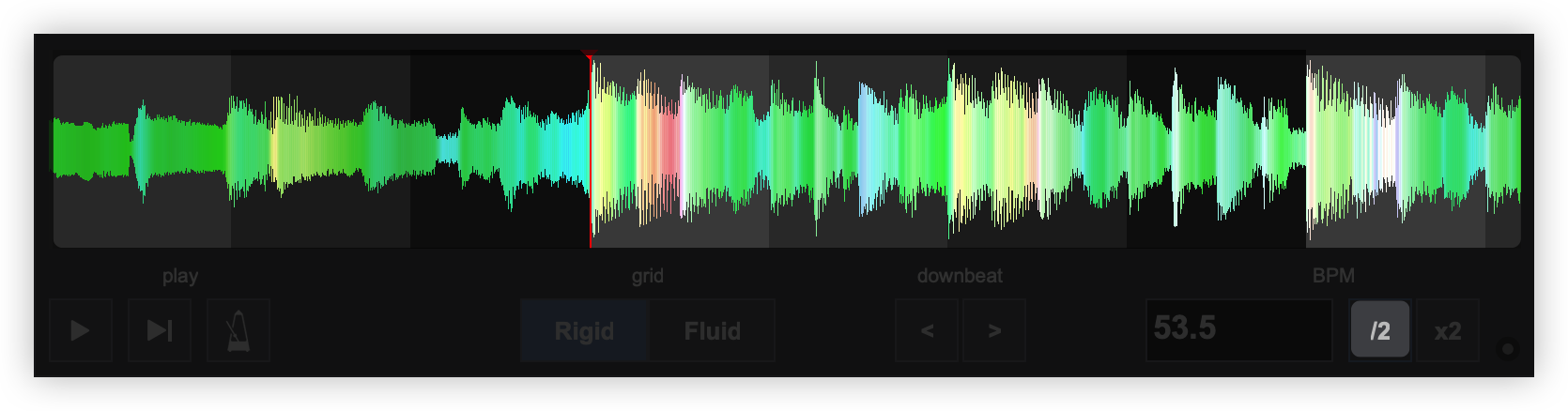
Rigid Displays the first detected beat as analyzed by VirtualDJ. It can be grabbed with the mouse to adjust it’s position. The Computer Beat Grid (CBG) is locked into place (non-adjustable) to the left of the anchor. Adjustments to the CBG can only happen to the right of an anchor. Fluid Displays multiple anchors with BPM values when the grid has fluctuating BPMs. Each anchor can be grabbed with a mouse to adjust it's position. - PLAY/STOP. Will play the track if it is stopped and will stop the track if it’s playing.
- PLAY-HOLD. Plays the track as long as the button is held. Once released, the playhead will jump back to it’s previously stopped position.
- METRONOME. Will play an audible beat based on the set BPM to verify that adjustments are correct and precise. The volume of the Metronome can be adjusted from the Options.
- GRID MODE. Displays and/or changes the current Grid Mode; Rigid (standard) or Fluid (adaptive). Selecting a different Grid Mode than the current selected mode will change how the grid behaves.
- DOWNBEAT. Shifts the downbeat forward or backward by 1 beat.
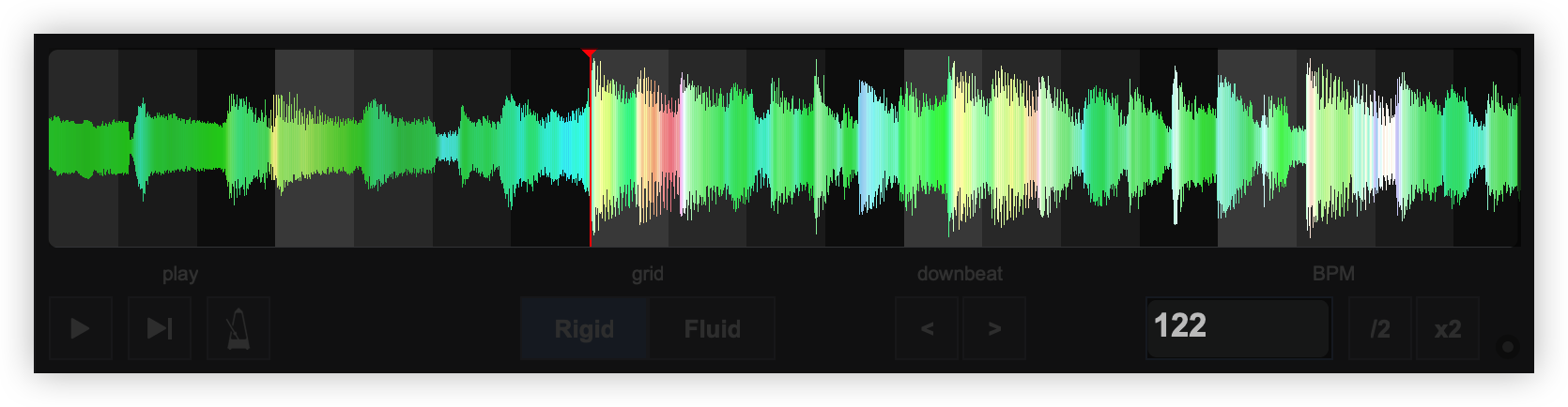
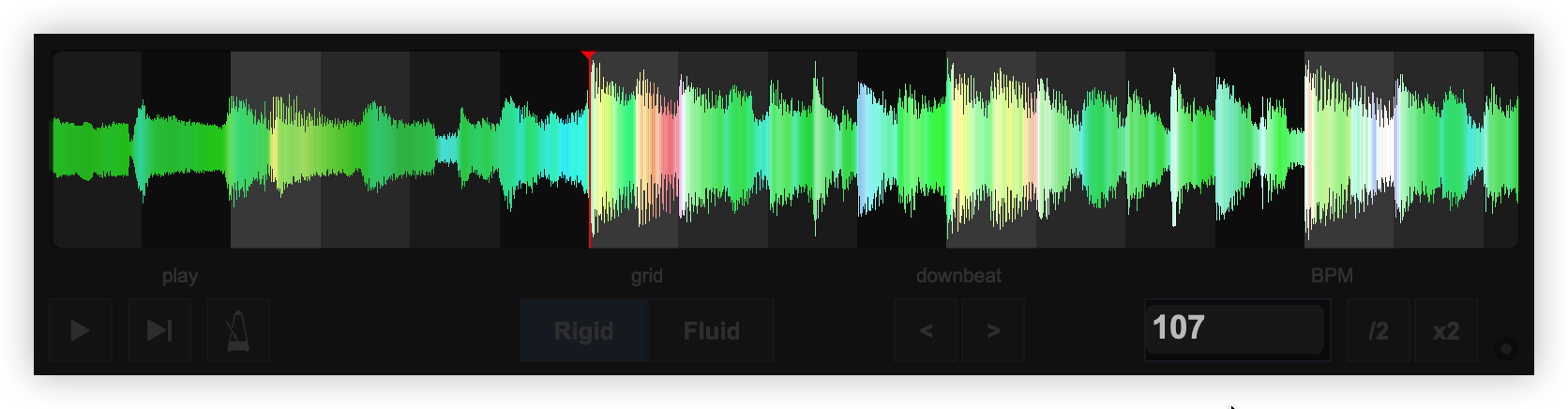
- BPM VALUE (Rigid BPM). Displays the currently adjusted BPM. Typing a BPM Value into the box will readjust the grid based on the value entered.
- BPM ADJUSTMENTS (Rigid BPM). Use the /2 and x2 buttons to half or double the displayed BPM.
- OPTIONS. Provides the following options:
Load in deck Loads the track to the active deck. If the track is already loaded to a deck the option to Copy from other deck will display instead. Re-analyze Rescans the BPM of the track - TAP (Rigid BPM). Click the Tap button to manually calculate the BPM of the track by tapping to the beat 4 times.
- DETECTION RANGE (Fluid BPM). VirtualDJ will automatically provide the detection range value of a track with Variable BPM, but it can be adjusted manually by typing the preferred detection range into this area.
- UNDO. If an edit has been made the UNDO button will appear. Changes can be reverted by using this function.
Using the BPM Editor
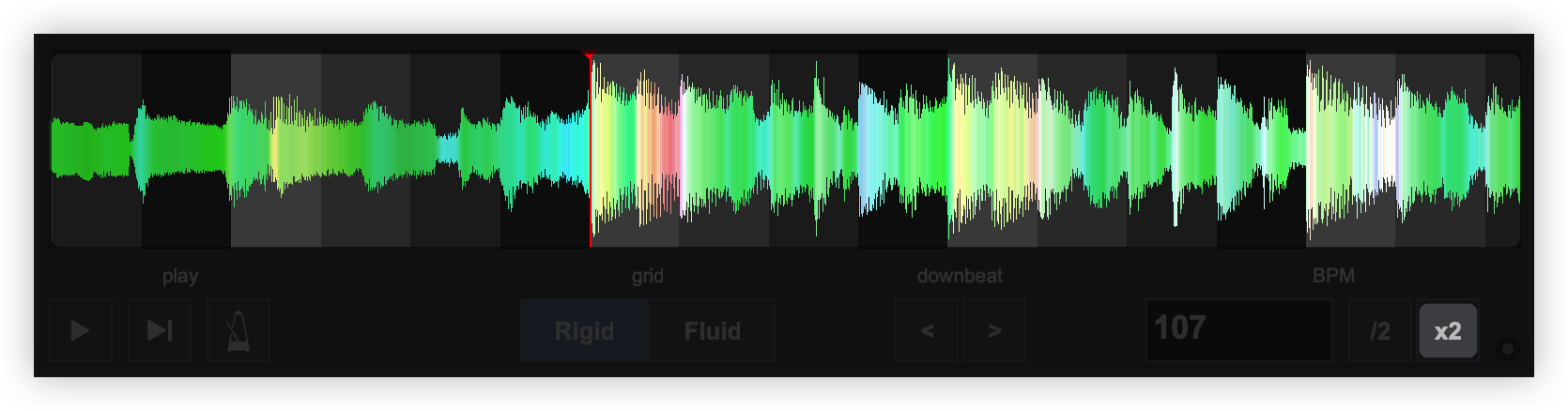
Once the BPM Editor is opened, the track will be analyzed and the multi-colored waveform will be displayed, providing information of its structure based on the detected frequencies. The grey-scaled background indicates the 4 beat pattern of the beatgrid of the track. The red vertical line indicates the Beatgrid anchor (first detected beat) if a Rigid BPM is detected (default). If a Fluid BPM is selected from the Grid Mode dropdown, multiple anchors will be displayed.
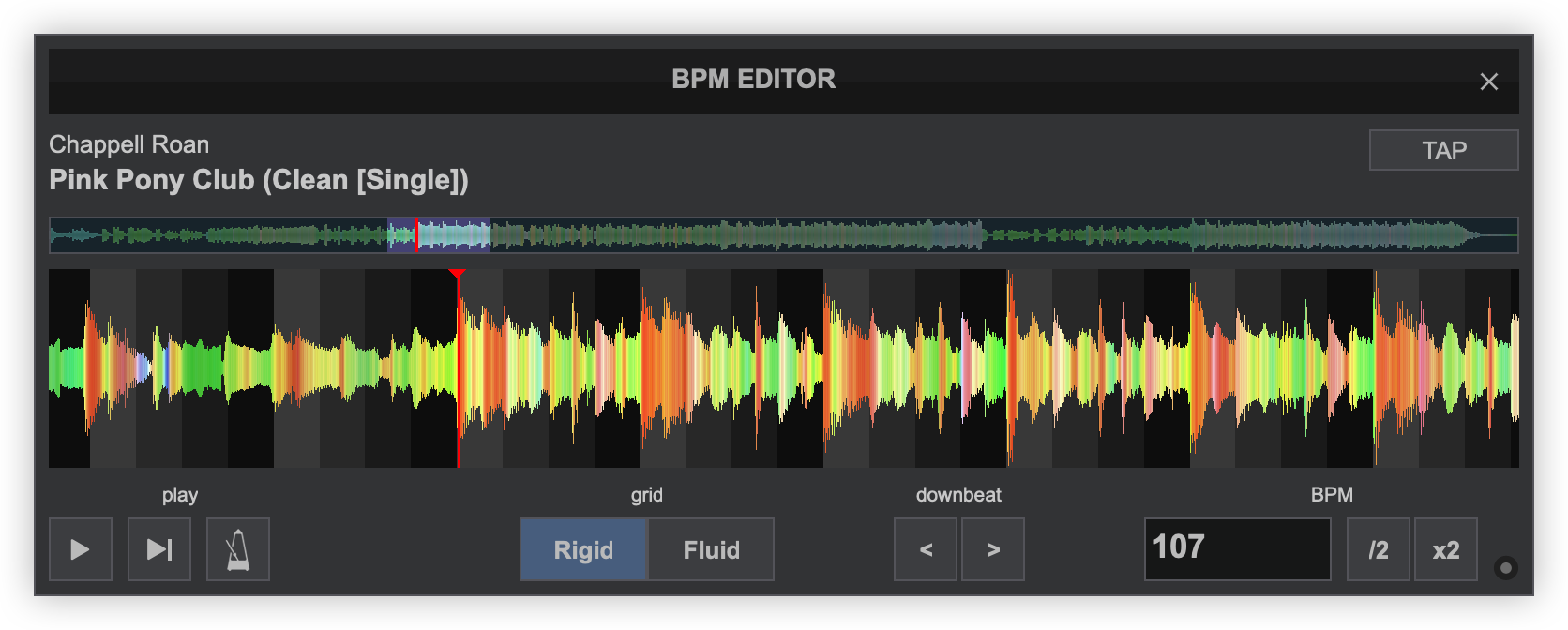
Use a wheel mouse to zoom in and out and the scroll bar to move back and forth to the areas that require a precise edit. Depending on the type of BPM adjustment required, there are various ways to adjust and correct the BPM value and the beat-phase of the track.
RIGID BPM
KNOWN BPM VALUE
If the BPM is already known as a value, simply type the BPM value in the BPM field. The CBG of the song will be updated automatically.
BPM HALF/DOUBLE
If the BPM is double or half the actual value and VirtualDJ has detected the phase of the song correctly but the BPM value is either half or double of the actual value, use the /2 and x2 buttons (see BPM Adjustments) to half or double the BPM value.
INCORRECT CBG
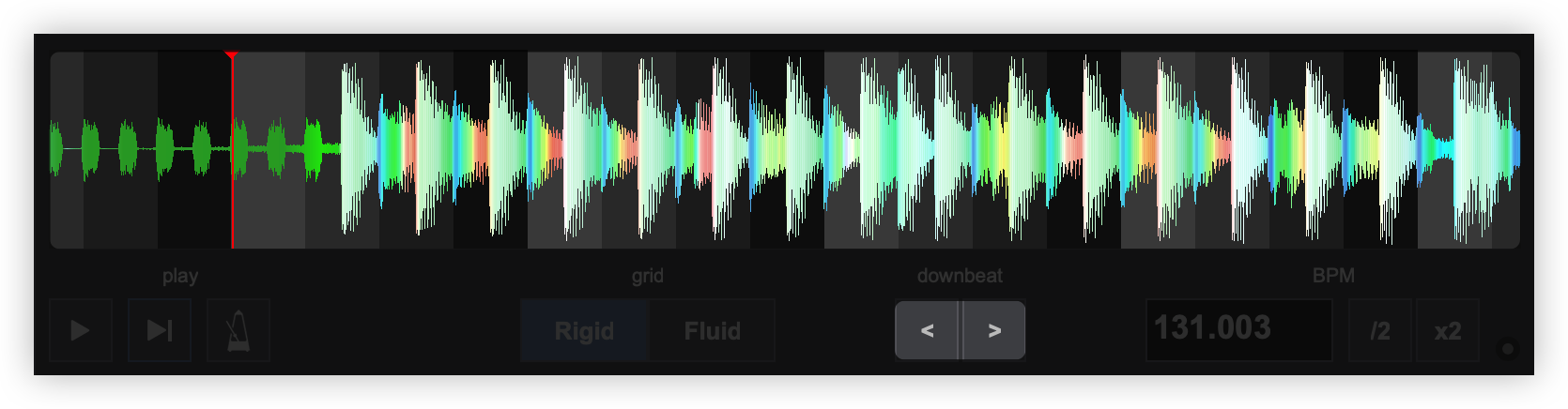
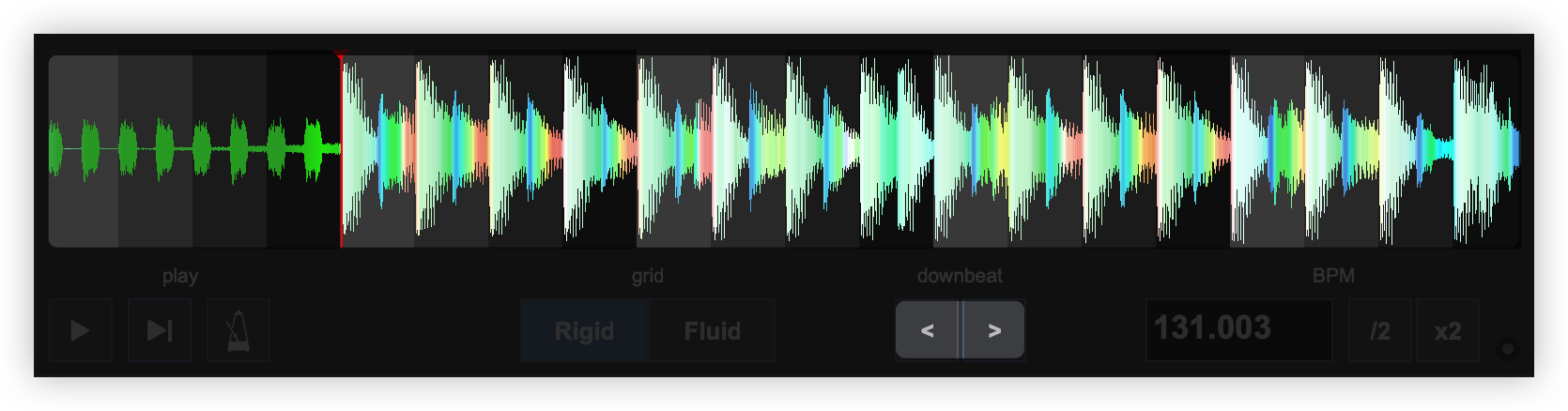
If the BPM value is correct but the Computer Beat Grid (CBG) is not, drag and move the Beatgrid Anchor to a part (beat) of the track. This will help make a more precise adjustment as the BPM value will not change in this case. The Downbeat buttons can be used to move the CBG of the song by 1 beat backwards or forward.
UNKNOWN BPM VALUE/INCORRECT CBG
If the BPM value and the CBG are incorrect or the BPM value is unknown, drag and move the Beatgrid Anchor to the beginning of the first beat. Place your mouse on the gray scaled background of the waveform between the 1st and 2nd beat until the mouse pointer changes to a double-sided arrow. Click and move this point to the beginning of the 2nd beat. The BPM will be re-calculated, based on these adjustments.


FLUID BPM
If the BPM value is fluid (tempo changes) in multiple parts of the file, the CBG will not be accurate for the entire track in Rigid mode. Fluid mode can be selected from the Grid Mode button in this case. VirtualDJ will automatically analyze the BPM value and change it to Fluid mode if fluidAnalysis is set to auto in Settings. This will add multiple beatgrid anchors automatically so that the CBG stays as accurate as possible. Each anchor will display the BPM value.
ADJUSTING ANCHORS
If a Fluid Anchor is off beat, it can be corrected by hovering your mouse over the anchor until the mouse pointer changes to a double-sided arrow. Click and move this point to the beginning of the selected beat. The BPM will be re-calculated for this anchor based on this adjustment and will display at the bottom of the anchor. Right clicking the anchor will provide the option to Delete anchor as well as other additional options.


RIGHT-CLICK OPTIONS
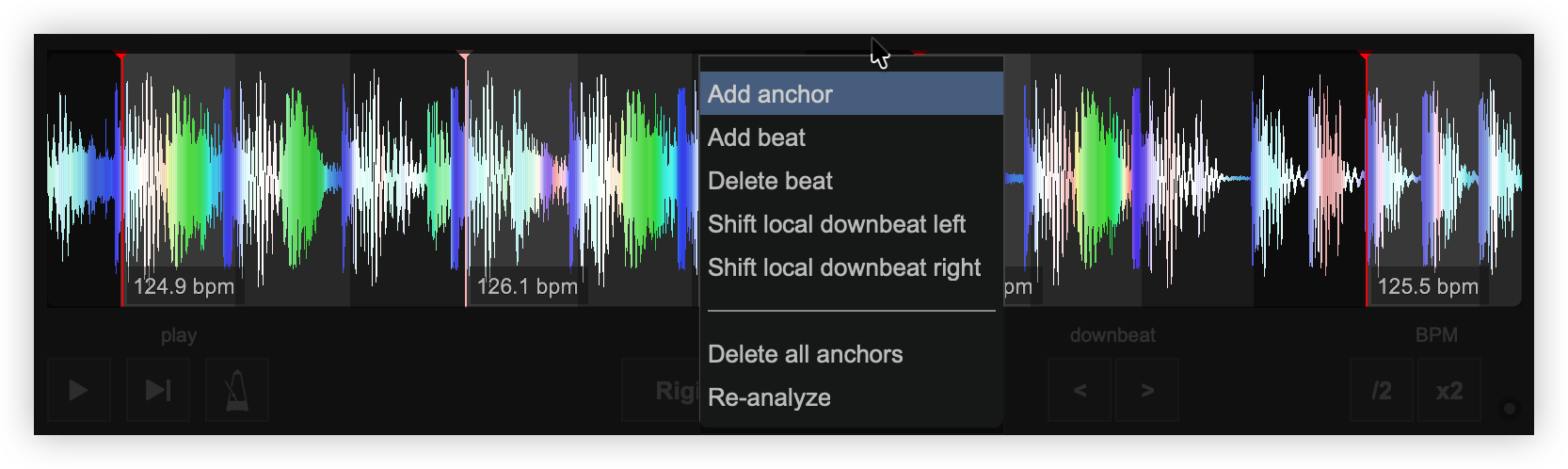
Right-clicking anywhere in the waveform area will provide additional options:
When right-clicking on anchor, additional options to force the downbeat are available:
VERIFY THE EDITED GRID
Use the Metronome button to enable/disable the built in Metronome and play part or all of the track while pre-listening to see if the beat of your track follows the Metronome and verify that your adjustments are correct and precise. Continue to zoom in and out of the editor to fine tune any adjustments required.
Once editing the BeatGrid is complete, exit out of the BPM Editor and the progress will be automatically saved. To reset the BeatGrid to the default value use the BPM Options inside the Editor or right-click on the track in the File List to select the Analyze BPM option.
DNA Scratch Editor