


Mixtrack GO
SETUP
Connections
Connect the unit’s USB socket with a USB port of your computer using the provided cable or other USB-C. Connect a pair of amplified speakers or amplifier to the Master Output at the left side panel and a pair of headphones to the left side panel of the Mixtrack GO.
Drivers
No driver is required to be installed for both Windows and Mac OS. The Mixtrack GO is a USB Class compliant device and your Operating system will automatically install the necessary drivers once the device is connected to your computer via a USB port.
VirtualDJ Setup
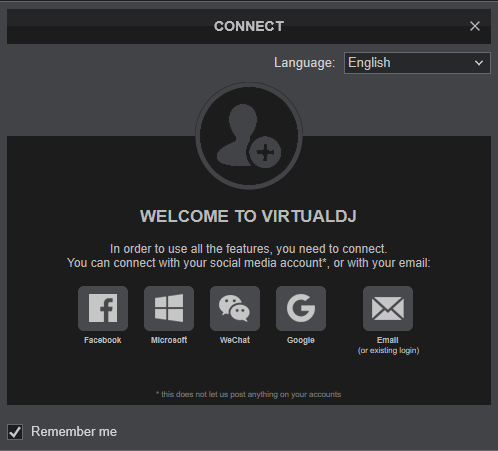
Once VirtualDJ is launched, a Connect window will appear. Login with your account’s credentials.
A Pro Infinity, a Pro Subscription or a Home License is required to use the Numark Mixtrack GO. Without any of the above Licenses, the controller will operate for 10 minutes each time you restart VirtualDJ.
https://virtualdj.com/buy/
Select “Mixtrack GO” and click OK
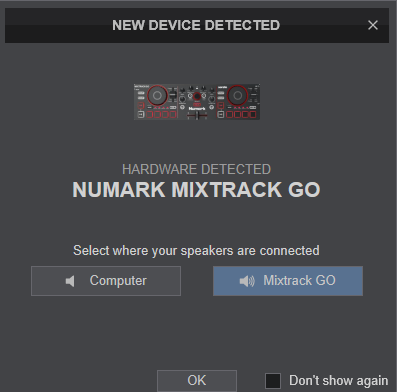
The device is now ready to operate with VirtualDJ.
MIDI Operation
The unit should be visible in the CONTROLLERS tab of Config and the “factory default” available/selected from the Mappings drop-down list.
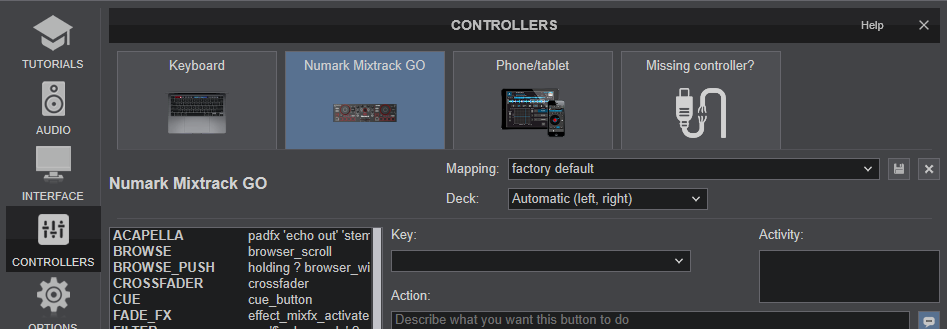
The factory default Mapping offers the functions described in this Manual, however those can be adjusted to your needs via VDJ Script actions.
Find more details at https://virtualdj.com/wiki/VDJscript.html
AUDIO SETUP
The device has a pre-defined Audio setup and a special button in the AUDIO tab of Config to provide that.
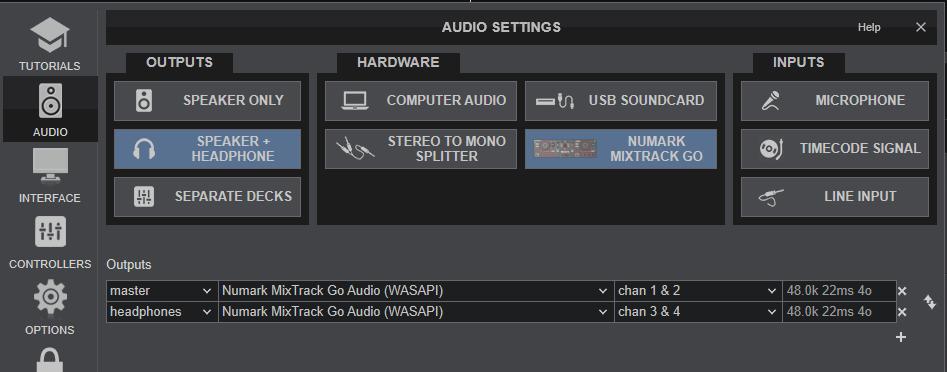
For further software settings please refer to the User Guide of VirtualDJ.
https://virtualdj.com/manuals/virtualdj.html
Controls