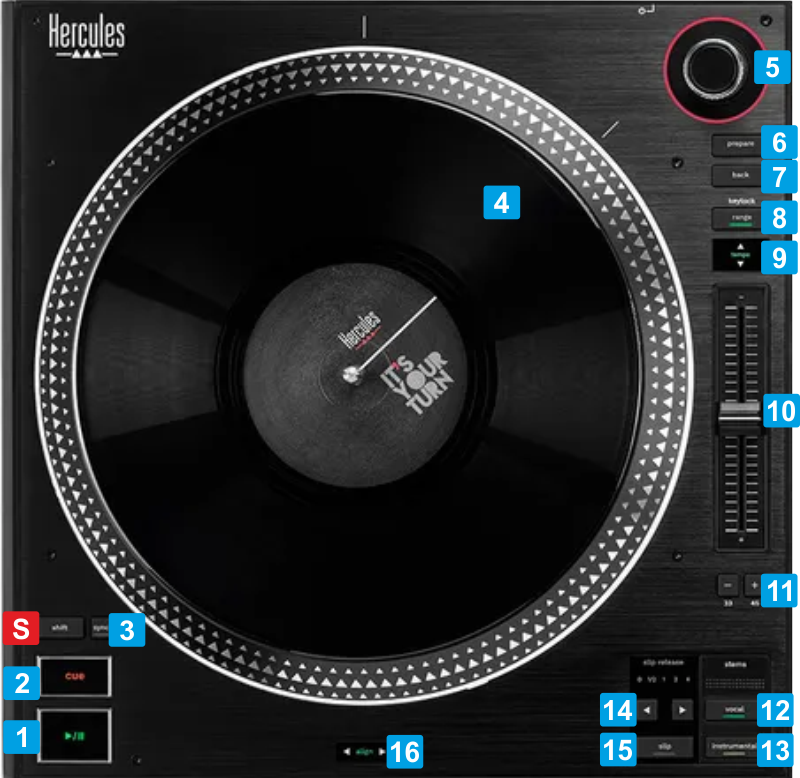
S SHIFTPress this button down to access secondary actions as described in the SHIFT ACTION column
KEY
ACTION
SHIFT (SECONDARY) ACTION
1 PLAYPlay/Pause the track loaded to left/right deckPlay-stutter track. When pressed, track will resume playing from the previously stopped position2 CUESets current position as Temporary Cue point. Preview track when paused while button is pressed Jumps and stops to the Cue point when playingReturns to the beginning of the track3 SYNCMatch BPM and Beat Phase with the opposite deckSmooth pitch reset. When pressed track will gradually get its original tempo4 JOGWHEELMotorized jogwheel for scratching or bending.5 BROWSEBrowse through Tracks or Folders depending on the currently focused list of Browser. If focus is on Folders, push to set focus to Songs List. If not on Folders List, push to load the selected Track to the Left/Right Deck. Double-push to clone the Track of the opposite Deck to the Left/Right Deck Scrolls fast (+10/-10 per step) through Folders or Tracks 6 PREPAREAdds the selected Track(s) from the Songs list to the Automix listSets the focus of the Browser to the Sideview list7 BACK Toggles the focus of the Browser between the Folders and the Songs list.Selects the next available tab of the Sideview list of Browser 8 RANGESelects the next available %range for the Pitch faderEnable/disable Key-Lock9 TEMPO LEDThe LED indicates if the Track's tempo matches the value of the opposite Deck and will be offered if the BeatMatch Guide button [24] is turned on. When enabled, the red LEDs indicate the direction the Tempo fader needs to be moved in order the track to get the same BPM as the one of the opposite Deck10 TEMPOAdjust the tempo of the loaded track 11 PITCH BENDSpeed up or speed down the tempo of the playing Track while these buttons are held down. When released, the Track will continue playing at the speed designated by the Pitch fader. Use the [+] button to set the motor speed to 45 RPM, and the [-] to set back to 33 RPM (default) 12 VOCALPress to keep the Vocals Stem and mute the Instrumental Stem of the loaded Track Enable Slip & FXs on Vocals. When enabled, scratching and Effects will be applied to just the Vocals Stem of the Track13 INSTRUMPress to keep the Instrumental Stem and mute the Vocal Stem of the loaded Track Enable Slip & FXs on Instrumental. When enabled, scratching and Effects will be applied to just the Instrumental Stem of the Track14 SLIP BEATSSelects the previous/next available beats value for Slip Release. When Slip is enabled, and Beats value is not on 0 (default), a delay in resuming Track will be applied after Slip has finished applying scratching, loops, hotcues etc.15 SLIPEnable/disable Slip mode. When enabled (its led is turned on) several functions, such as scratching, loops and hotcues will be performed temporary and when finished (released), the track will resume from the position it would have been if the action was never triggered.Enable/disable Quantize. When enabled, Loops, Hotcues and other functions will be snapped to the nearest Beat16 BEAT ALIGNThese leds indicate the direction the jogwheel needs to be moved to, in order its beat-grid to match with the opposite deck. Leds will operate if: - the BeatMatch Guide button [24] is turned on - the Deck is not the Master-Deck (deck that is playing out live - on air) - the deck is not playing Pads