


XONE 24C
SETUP
STEP 1 : CONNECTIONS
- Connect amplifier or amplified speakers to the rear-panel Outputs of the device.
- Connect your Headphones to the front panel socket using a 1/4" or 1/2" cable or adapter.
- Connect the Allen & Heath XONE :24C to a USB port of your computer via the rear-panel USB-C socket, using a USB cable.
- Optionally connect your DVS (Timecode Vinyl or CD) to the rear panel Inputs PHONO or LINE. See Advanced Setup
- When the above connections are done, connect the Allen & Heath XONE :24C to AC using the provided supply and power on.
STEP 2 : DRIVERS
Windows OS : Download and install the XONE 24C Windows driver https://www.allen-heath.com/hardware/xone-series/xone24c/resources/
Mac OS : The XONE:24C is a Mac USB Class Compliant CoreAudio CoreMIDI interface. You do not need to install any Driver for use with macOS
STEP 3 : VirtualDJ Setup
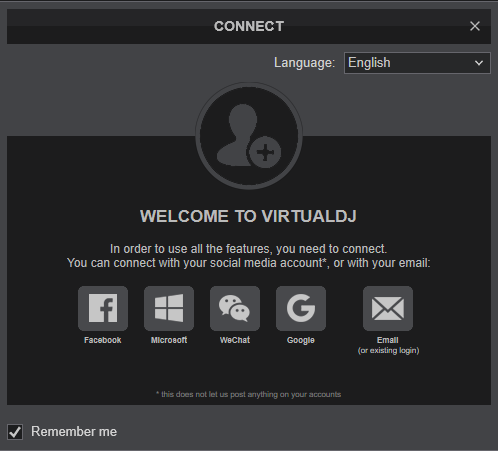
Once VirtualDJ is launched, a Connect window will appear to enter your virtualdj.com account credentials.
A Pro Infinity or a Pro Subscription License is required to fully use the XONE 24C. Without any of the above Licenses, the device will operate for 10 minutes each time you restart VirtualDJ.
https://virtualdj.com/buy/
Click on the "XONE 24C" if your speakers are connected to the Main Output at the rear side of the device.
You can still make changes in the Audio setup from VirtualDJ Settings->AUDIO tab.
Press OK.
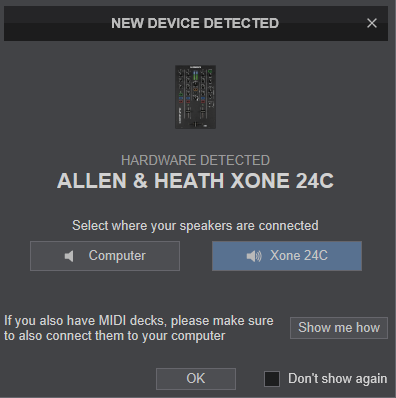
The device is now ready to operate.
Controls