

Blog
How To Use The PC Mappers In MAC OSX
Tue 20 Mar 12 @ 2:22 am
Few years back after doing some work around for a while i was very upset that i couldn't find mapper of my controller for MAC then after doing some trials and experiment on how could i make it works finally i have found some solution to it which very useful to all MAC user who's planning to use their mappers that are available in PC could be used in MAC easily. If your mapper is only available for PC and hardly found in MAC you can still used that mappers by simply doing some few steps below. Now in Virtual DJ after doing the firmware and driver installation sometimes controller will still not work on MAC unless you have downloaded the right mappers and definition files. Also mappers and definition files may contains incorrect heading for MAC Machines and this is what we are going to do. Also this is very helpful for those guys who are making mappers for PC and wants to create another version for MAC you can easily do that by following the same steps below. The first thing to do is to download the mapper for PC and extract in PC because it has an .EXE extension files which is not possible for MAC to extract. In PC your extracted mapper files could be found in the following folder:MY COMPUTER/USER/LIBRARIES/MY DOCUMENTS/VIRTUALDJ/MAPPERS this where the mappers files are installed it is with .XML extension
MY COMPUTER/USER/LIBRARIES/MY DOCUMENTS/VIRTUALDJ/DEVICES this where the definition files are installed it is with .XML extension
Once you extract the files open that .XML files in some text editor programs in MAC or in PC and then once it is open, the first thing to do is to look at the HEADING OF THE MAPPERS & DEFINITIONS FILES and your heading should look like below. The MAPPER FILES HEADING & DEFINITION FILES HEADING contains some of the most important details of the driver name and the hardware ID's like the PID-Product ID, VID-Vendor ID and the SYSEX-Also called as the Location ID in MAC. The mappers and definitions file are the XML files and can be view and edited by some text editor tools for Mac.
This is the MAPPER FILES HEADING look like:
<?xml version="1.0" encoding="UTF-8"?>
<mapper device="XONE:DX MIDI" author="Cesar Castillo" description="Xone DX Midi Mapper" version="705" date="22/01/2012">
This is the DEFINITION FILES HEADING look like:
<?xml version="1.0" encoding="UTF-8"?>
<device name="XONE:DX MIDI" author="Cesar Castillo" type="MIDI" pid="0xffdd" vid="0x0a4a" sysex="0xfa200000" decks="4">
To be sure about the driver name, device name and other hardware ID's like the PID, VID & SYSEX of your controller you have to find the correct info for MAC OSX here it in the following path, but be sure that your controller is on and currently connected to your MAC in order to have this queries.
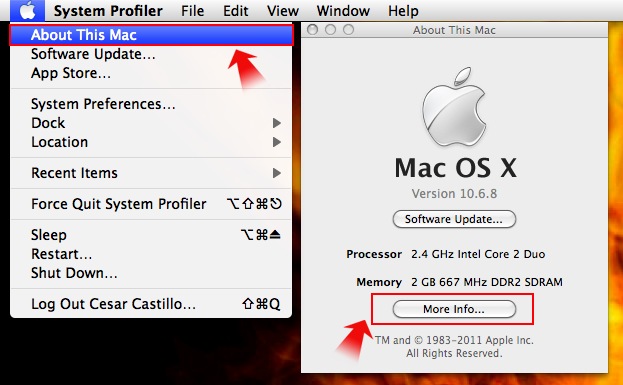
Click the Apple logo on the left top corner of the apple screen menu. Then choose "About This Mac" then a pop-up window will appear and choose "More Info...
Then choose "Hardware" drop down menu then choose "USB" your current screen should look like below where you can find all the info of your controller in MAC OSX here in this window.
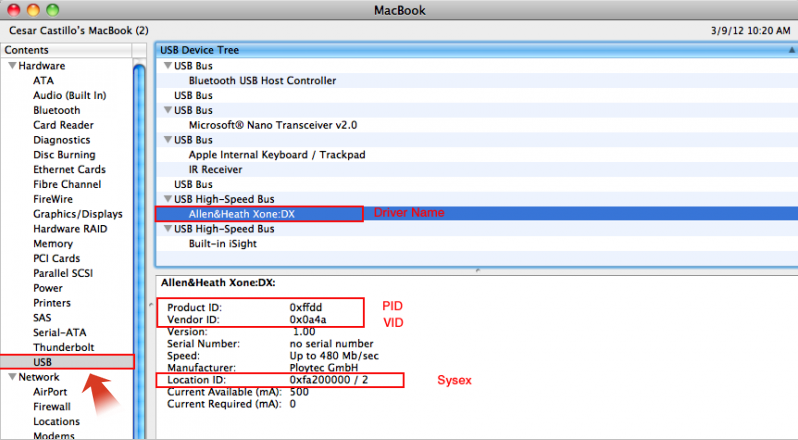
Now what we are going to do is to replace those data that is for PC and change it for MAC. Then you have to filled those blank and replace those infos like the driver/device name, PID/VID/SYSEX of the controller in mapper example above with the info you have in your hardware window. Once done save your mapper.xml and definition.xml and load it to the right location. You can either copy and and paste it to the following folder in MAC:
MAC HD/USER/MY DOCUMENTS/VIRTUALDJ/MAPPERS paste the mapper.xml here, this where the mappers files are installed.
MAC HD/USER/MY DOCUMENTS/VIRTUALDJ/DEVICES paste the definition.xml here, this where the definition files are installed.
Restart your start system and open your Virtual DJ and your done....If your controller is not recognized by the MAC OSX you can read my blogs on how to add and setup your controller in the Audio Midi Setup system profiler for MAC OSX.